Recording replays
How Hindsight records your play sessions on any server and in singleplayer, where the files go, and everything on the Replays screen.
Session replays record everything you see while you play: the world, players, mobs, chat and particles. Afterwards you can fly through the recording from any angle, watch through anyone’s eyes and turn it into a video.
Recording happens entirely in your own game. It works on any server, including ones that don’t have Hindsight, and in singleplayer.
Recording
Recording is on by default for both your worlds and servers. When you join, a grey line in chat says:
● Hindsight is recording this session. Watch it later from Replays on the title screen.
There’s nothing else to do. Play as normal, and when you leave the world or server, the recording is finished and saved.
- In singleplayer, time spent on the pause menu is cut out, so the replay doesn’t sit still while you were away.
- If the game crashes mid-recording, the unfinished recording is rescued and saved the next time you start Minecraft.
- If a single recording grows past 4 GB, chat suggests reconnecting to start a fresh one.
Voice chat
If you play with Simple Voice Chat, Hindsight records what you hear, and your own microphone, along with the session. In the replay, everyone’s voice comes from where they were standing, follows the replay’s speed and pauses with it, and goes into exported videos. Mute it under visuals if you’d rather not hear it.
Watching a replay with voice chat doesn’t need Simple Voice Chat installed. Voice chat comes along when converting to and from Flashback.
Marking moments
Under Options > Controls > Key Binds > Hindsight there’s Replay: add marker. It has no key until you give it one. Press it while recording to mark a moment (“Marker added.” appears in chat), and the marker shows on the replay’s timeline later, so you can jump straight to it.
Deaths, kills, advancements, boss fights, explosions and chosen chat words are marked by themselves, and F10 saves the last two minutes as a clip without stopping the recording.
Turning recording off
On the Replays screen, press Record worlds or Record servers to turn each one on or off. Or edit config/hindsight-client.properties in your game folder:
recordSingleplayer=false
recordMultiplayer=false
Some servers have rules about recording. If you’re not sure, ask the server’s staff.
Where the files go
Hindsight’s recordings are saved in .minecraft/hindsight/replays/ (or your launcher’s instance folder), named by the date and time they started, like 2026-10-22_18-30-05.hsr.
.hsr is Hindsight’s own replay format. Hindsight also opens ReplayMod’s replays directly, and converts replays to and from ReplayMod and Flashback. See moving from ReplayMod and Flashback.
The Replays screen
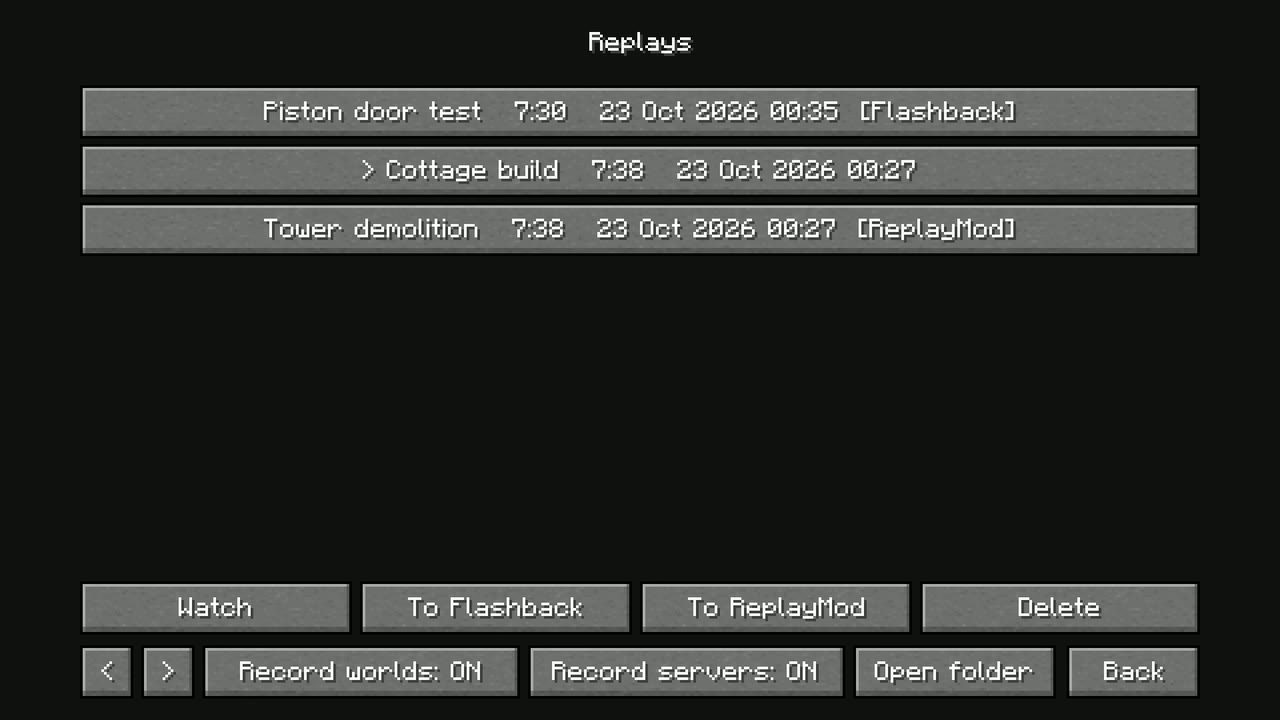
On the title screen, press Replays in the top-left corner.
The list shows every replay on your computer, newest first, with its length and the date it was recorded:
- Hindsight’s own recordings, from
hindsight/replays/. - ReplayMod’s recordings, from
replay_recordings/, marked [ReplayMod]. - Flashback’s recordings, from
flashback/replays/, marked [Flashback].
A replay recorded on a different version of Minecraft shows which version it’s from, and can’t be watched in this one. Use < and > to page through a long list.
Click a replay to select it, then:
| Button | What it does |
|---|---|
| Watch | Opens the replay. See watching replays and the editor. |
| Import & watch | Shown instead of Watch for Flashback replays. Converts it into a new Hindsight .hsr replay, keeping its markers and camera keyframes, then opens it. The Flashback file isn’t changed. |
| To Flashback | Converts a Hindsight or ReplayMod replay for Flashback and saves it in flashback/replays/, with its camera keyframes. |
| To ReplayMod | Converts one of Hindsight’s replays to a ReplayMod .mcpr file in ReplayMod’s replay_recordings/ folder, with its camera keyframes and markers. |
| Rename | Type a new name and press Save. Hindsight and ReplayMod replays are renamed on disk; Flashback ones get the new name inside. |
| Delete | Deletes one of Hindsight’s own replays. It asks first: the button changes to Really delete?, and you click again. ReplayMod and Flashback files are never deleted from here. |
| Record worlds / Record servers | Turns recording on or off for singleplayer worlds and for servers. |
| Open folder | Opens Hindsight’s replay folder. |
| Queue (top right) | The export queue: videos waiting to be exported. |
Converting runs in the background, and a line on the screen says when it’s done.