Watching replays and the editor
Flying through a replay, watching through someone's eyes, the playback keys, the replay editor, markers, camera paths, visuals and trimming.
Open a replay from the Replays screen. After a moment’s loading, you’re dropped into the recording as a free-flying camera.
Getting around
- Fly anywhere. You’re a spectator camera: fly with the usual movement keys, straight through walls. Scroll the mouse wheel to fly faster or slower.
- Watch through someone’s eyes. Click a player or mob to see exactly what they saw. Sneak (Shift) to stop.
- The person who recorded appears in the replay as themselves, so you can watch them like anyone else.
A slim timeline runs along the bottom of the screen, with any markers on it. F1 hides it along with the rest of the HUD, for clean screenshots.
Playback keys
| Key | What it does |
|---|---|
| K | Pause or play. |
| [ and ] | Slower or faster: 0.1x, 0.25x, 0.5x, 1x, 2x, 4x, 8x or 16x. |
| ← and → | Jump back or forward 5 seconds. |
| ’ | Opens the replay editor. |
| Replay: add marker | Adds a marker here. No key until you give it one. |
All of them can be changed under Options > Controls > Key Binds > Hindsight. A reminder of the keys shows for a few seconds when a replay opens.
The replay editor
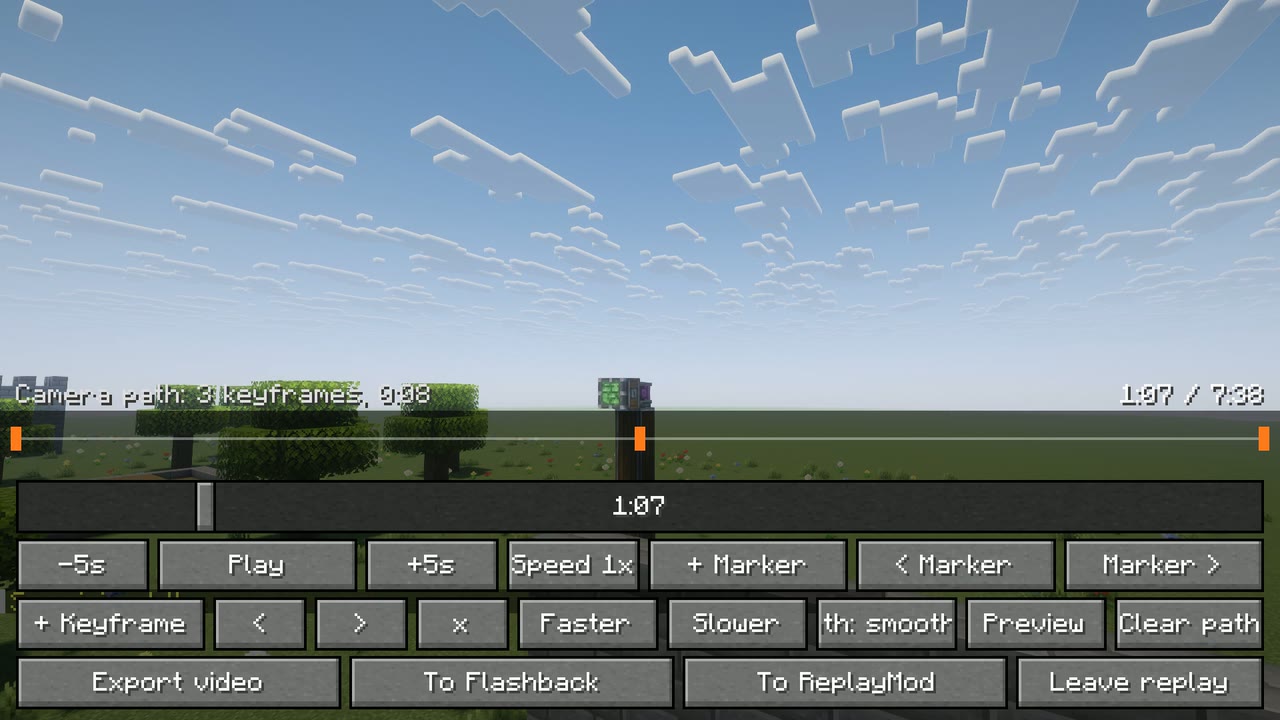
Press ’ while watching. The editor opens along the bottom of the screen and the replay keeps playing behind it.
The timeline: drag the slider to jump anywhere in the recording. Jumps are quick both ways: Hindsight keeps a snapshot of the world every few minutes in its recordings (and every minute of a replay you’ve watched), so jumping back starts from the nearest one instead of from the beginning.
| Button | What it does |
|---|---|
| -5s / +5s | Jump back or forward 5 seconds. |
| Play / Pause | Plays or pauses. |
| Speed | Click for faster, Shift-click for slower. |
| + Marker | Adds a marker at this moment. Markers show as small gold ticks under the timeline. |
| < Marker / Marker > | Jumps to the previous or next marker, and says what it was (like “Steve died” for a highlight). |
| Export video / Export settings | See exporting video. |
| Visuals | What the replay shows: see visuals. |
| File | Save a trimmed copy, or copy the replay for Flashback or ReplayMod: see trimming and copies. |
| Photo | A picture for a thumbnail: see photo mode. |
| Leave replay | Closes the replay and goes back to the Replays screen. |
The top row is for setting up shots: Record path, Orbit, Shake, Shots, Other views and Guides. See for video makers.
Close the editor with Esc to fly around again.
Camera paths
A camera path is a smooth shot you set up yourself, made of keyframes: places for the camera at moments in the replay. You can preview it, and export it as a video.
Make one
- Find the moment the shot should start. Pause if it helps.
- Close the editor, fly the camera to where the shot should begin, then open the editor again and press + Keyframe.
- Let the replay move on (or jump ahead), place the camera again and press + Keyframe again.
- Keep going until the shot is done.
Keyframes show as orange ticks along the top of the editor, and a line above them tells you how many there are and how long the path is. You can also add a keyframe while watching someone through their eyes.
The path plays the replay at the speed you watched it: if two keyframes are 20 seconds apart in the replay, that part of the path takes 20 seconds.
Change it
| Button | What it does |
|---|---|
| < / > | Selects the previous or next keyframe. The replay jumps to its moment and the camera to its place, and its tick turns white. |
| x | Deletes the selected keyframe. |
| Faster / Slower | Speeds up or slows down the stretch leading into the selected keyframe. The editor tells you the new speed, for example “That part now plays at 2.00x”. |
| Path | How the camera moves between keyframes: Path: smooth (a gentle curve through every keyframe), Path: spline or Path: straight (straight lines from one to the next). |
| Preview | Plays the whole path from the start. The editor closes so you can watch; open it and press Stop preview to stop early. |
| Clear path | Removes every keyframe. It asks first: click it a second time to confirm. |
To move a keyframe, select it, place the camera again without letting the replay move on, and press + Keyframe: a keyframe at the same moment replaces the old one.
Field of view, tilt and following
A row of the editor sets up the camera itself. Each change shows straight away, goes into new keyframes, and changes the selected keyframe if one is selected:
| Button | What it does |
|---|---|
| - / FOV / + | Zooms the view out or in, 5 degrees at a time. Click FOV to go back to the game’s own. Between keyframes the field of view changes smoothly, so a path can slowly zoom in. |
| < / Tilt / > | Tilts (rolls) the camera to one side, 5 degrees at a time. Click Tilt to level it. |
| Follow | Click to go through the players in view. A keyframe made while following someone stays the same distance from them and keeps looking at them, wherever they go: great for chasing someone along a path. Follow: nobody turns it off. |
Time of day
A keyframe remembers the time of day picked in visuals when it was made. Make one keyframe at Evening and a later one at Night, and the path plays a sunset between them.
Saved in the replay
Markers and camera paths are saved inside the replay file. In a ReplayMod replay opened from replay_recordings/, they’re saved back in ReplayMod’s own format, so ReplayMod sees them too (field of view, time of day and following are Hindsight’s own, kept alongside). For a Hindsight replay, To ReplayMod and To Flashback under File convert it and take your path and markers along; convert again after changing the path.
Visuals
Press Visuals in the editor for a cleaner shot. Changes show straight away and go into exported videos; they reset when you leave the replay.
| Setting | What it does |
|---|---|
| Name tags | Shows or hides name tags. |
| Particles | Shows or hides particles. |
| Players | Shows or hides every player. |
| Mobs and things | Shows or hides everything else that moves: mobs, animals, items, minecarts and so on. |
| Time | Holds the time of day: dawn, morning, noon, evening, sunset or night (or as recorded). |
| Weather | Clear, rain or thunder (or as recorded). |
| Voice chat | Plays or mutes the replay’s voice chat. |
| Block effects | Timelapses: a puff of dust and the block’s sound as each block goes in. |
| Players in view | Click someone to hide just them (and again to bring them back). … gives them another name or a plain skin: see names and skins. |
| Anonymous | Shows everyone as “Player 1”, “Player 2” and so on, with plain skins. |
| Reset all | Back to the replay as recorded. |
Timelapses have the same Visuals button.
Trimming and copies
Press File in the editor:
| Button | What it does |
|---|---|
| Start here / End here | Sets where a trimmed copy starts and ends, from the replay’s current moment. The screen shows what will be kept. |
| Save a trimmed copy | Saves just that part as a new replay beside the original (named with the times kept), with its markers, camera paths and voice chat. It opens straight at the start point. The original isn’t changed. Works on Hindsight’s own replays. |
| To Flashback / To ReplayMod | Copies the replay for that mod, as on the Replays screen. |