Controls
Block Band's two-handed keyboard layout, strum mode, gamepads, guitar and drum controllers, and timing calibration.
Every control can be changed in Options › Controls › Block Band. The keys (or controller buttons) for each lane are always shown under the highway while you play.
Keyboard
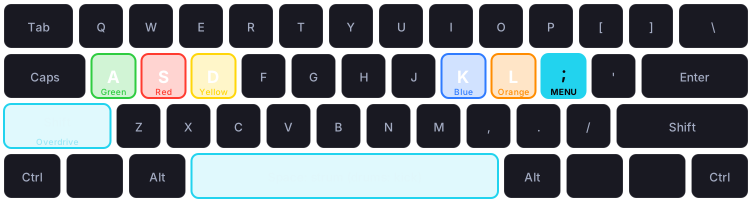
The keys go by position, not by what’s printed on them. The picture shows a US keyboard; on yours, use the keys in the same places. On a French keyboard, for example, the green fret is the key printed Q. The game always shows your own key names under the highway.
The Block Band menu opens with the key just right of L (highlighted above). It’s printed ; on US and UK keyboards, Ö on German ones, Ñ on Spanish ones and M on French ones. The first time you join a world, Block Band tells you its name on your keyboard, and so does any instrument’s tooltip. Most modpacks leave this key free. You can also open the menu by right-clicking while holding an instrument.
The layout uses both hands so no finger has to stretch: left hand on A S D, right hand on K L, thumbs on Space, and your left little finger on Left Shift.
Guitar, bass and keys
| Action | Key |
|---|---|
| Lanes (green, red, yellow, blue, orange) | A S D K L |
| Overdrive | Left Shift, or Space when strum mode is off |
| Strum (strum mode only) | Space, or the ↑ ↓ arrow keys |
| Pause | Esc |
Drums
| Action | Key |
|---|---|
| Pads (red, yellow, blue, green) | S D K L |
| Kick pedal (the orange bar across the highway) | Space |
| Overdrive | Left Shift |
Vocals
Sing into your microphone. Overdrive is Space or Left Shift. See Vocals.
Strum mode
With strum mode off (the default), you just press each lane’s key as its note arrives. That’s the easiest way to play on a keyboard.
With strum mode on, guitar and bass work like a real controller: hold the lane keys down, then press the strum key to play the note. Notes with a white centre are hammer-ons: right after you hit a note, you can play them just by changing lanes, without strumming. Turn strum mode on in Settings, or on the Controllers screen.
Controllers
Plug a controller in and play. Xbox and PlayStation controllers work straight away, and so do guitar and drum controllers that show up as an Xbox-style controller. While you use one, the hints under the highway show its buttons (in Xbox or PlayStation style) instead of keys.
| Controller | Lanes | Strum | Overdrive | Pause |
|---|---|---|---|---|
| Gamepad | LT, LB, RB, RT, A (L2, L1, R1, R2, Cross) | D-pad up/down | Y or Back | Start |
| Gamepad on drums | Pads LT, LB, RB, RT, kick A | Y or Back | Start | |
| Guitar controller | Frets A, B, Y, X, LB (green to orange) | Strum bar | Back (star power) | Start |
| Drum kit | Pads B, Y, X, A (red, yellow, blue, green), kick LB | Back | Start |
Turn strum mode on to play a guitar controller like the real thing.
Setting up a controller
Open Controllers in the Block Band menu. It shows what each button does, and lights each one up when you press it. To change one, press Change and then the button you want (“Press the button for Green…”). Guitar, bass and keys have one setup and drums have another.
Controllers that aren’t recognised (some USB or Bluetooth guitars and drum kits) start with nothing set: just press Change next to each action once. Setups are saved for each controller model, and Reset to default puts one back.
Calibrating your timing
Speakers, headphones and Bluetooth all add a small delay between the game playing a note and you hearing it. Open Calibrate in the menu and press Space (or any controller button) on every click. Block Band measures how late you are on average and adjusts every song to match. Press Save when it’s done.
Listen to the clicks rather than watching the flash: the flash isn’t the timing.